-
Log in as admin on Lobbytrack.com
-
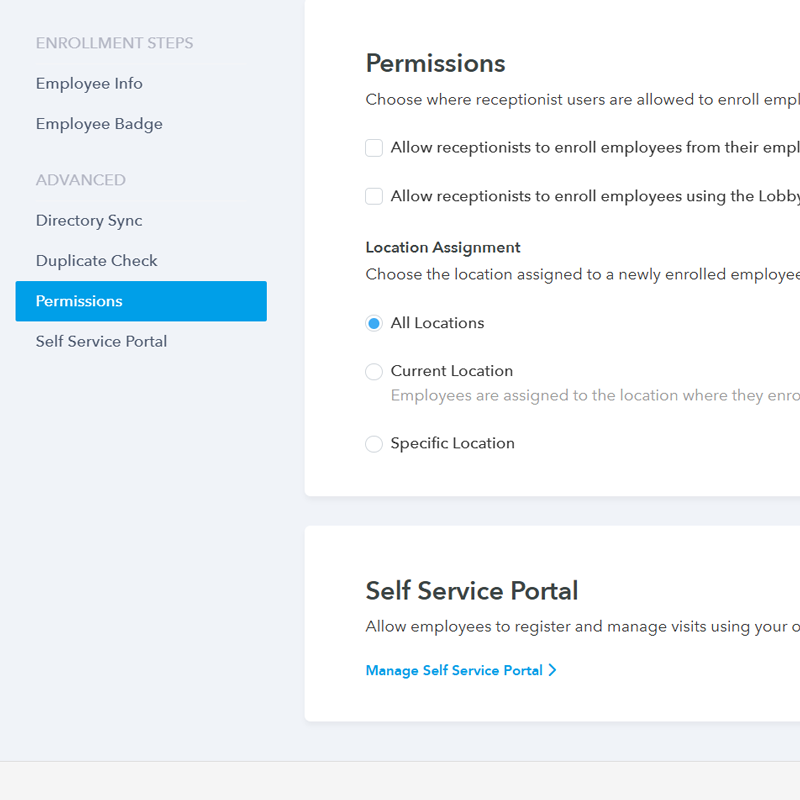
Go to Settings > Employees > Enrollment > Permissions.
-
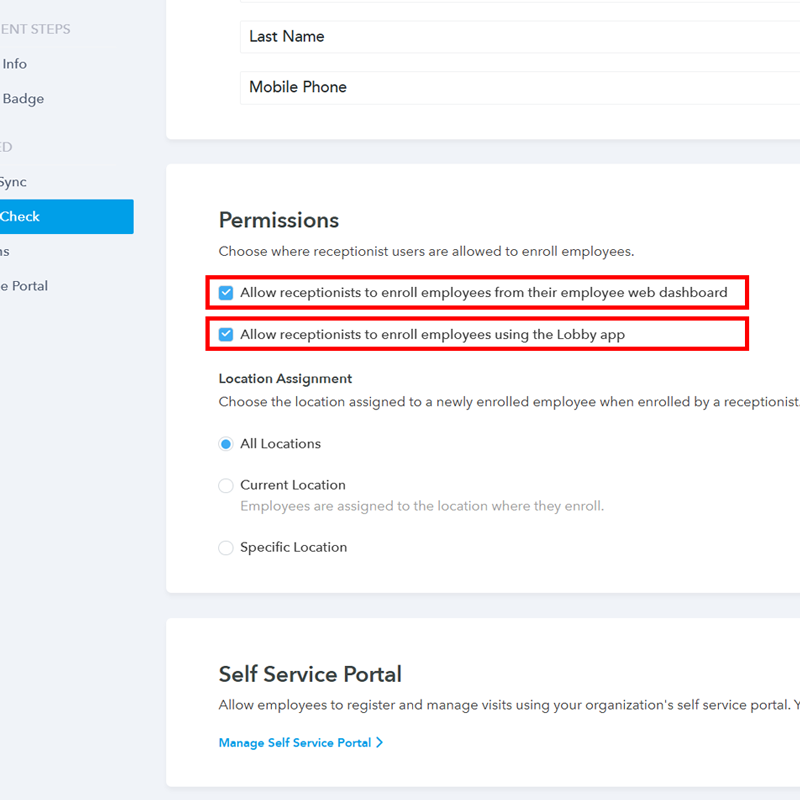
Check the boxes to allow receptionists to enroll employees on the web and in the app.
-
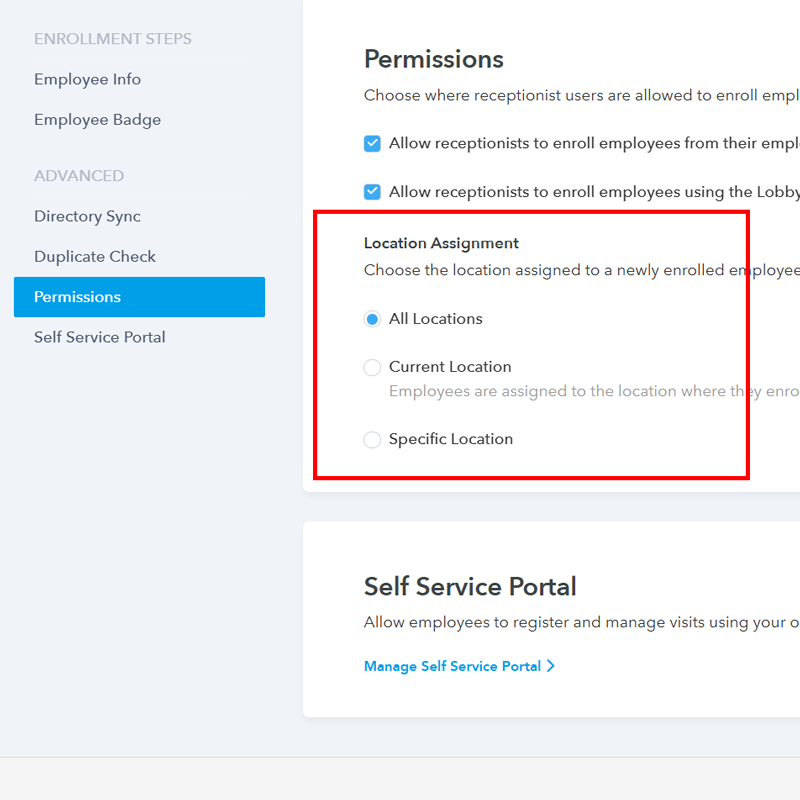
Configure Location Assignment as appropriate.
-
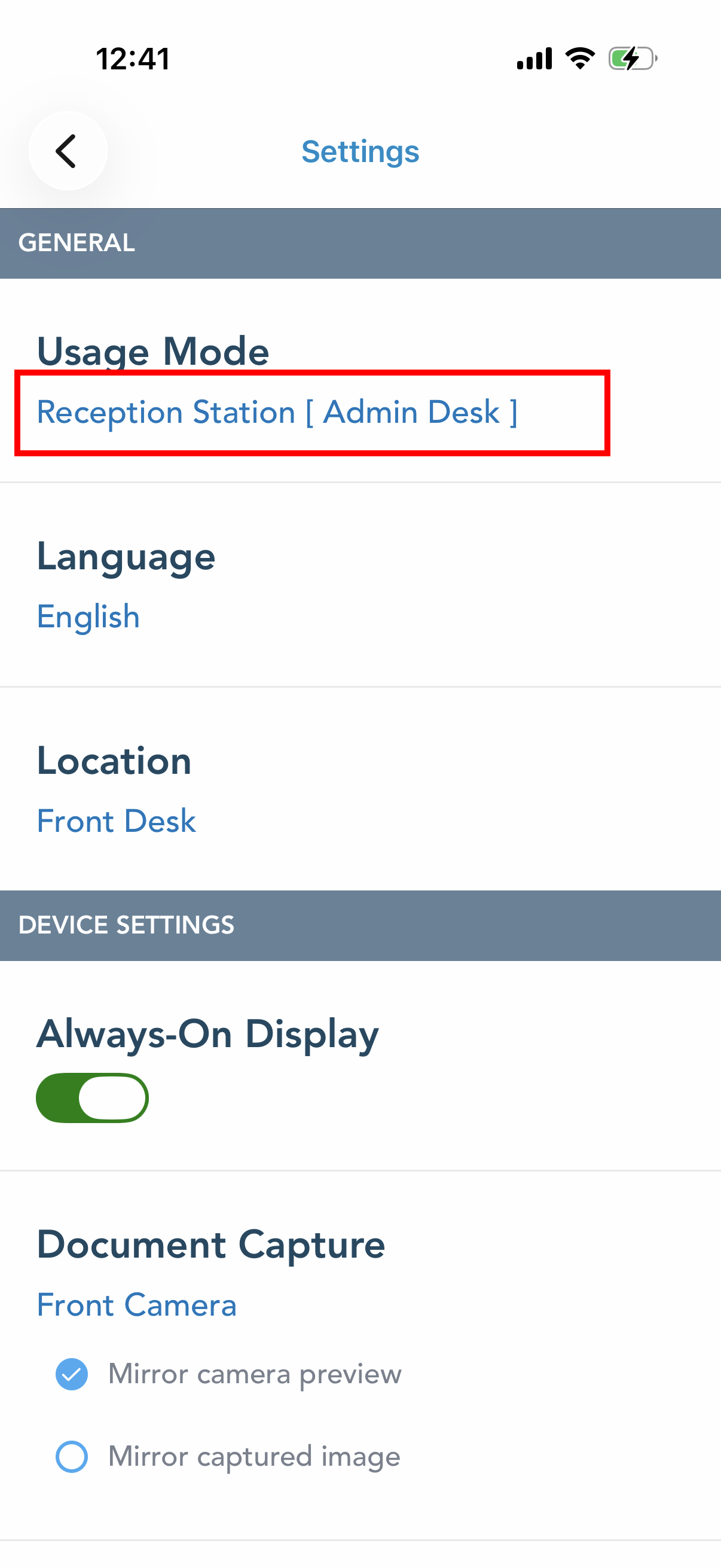
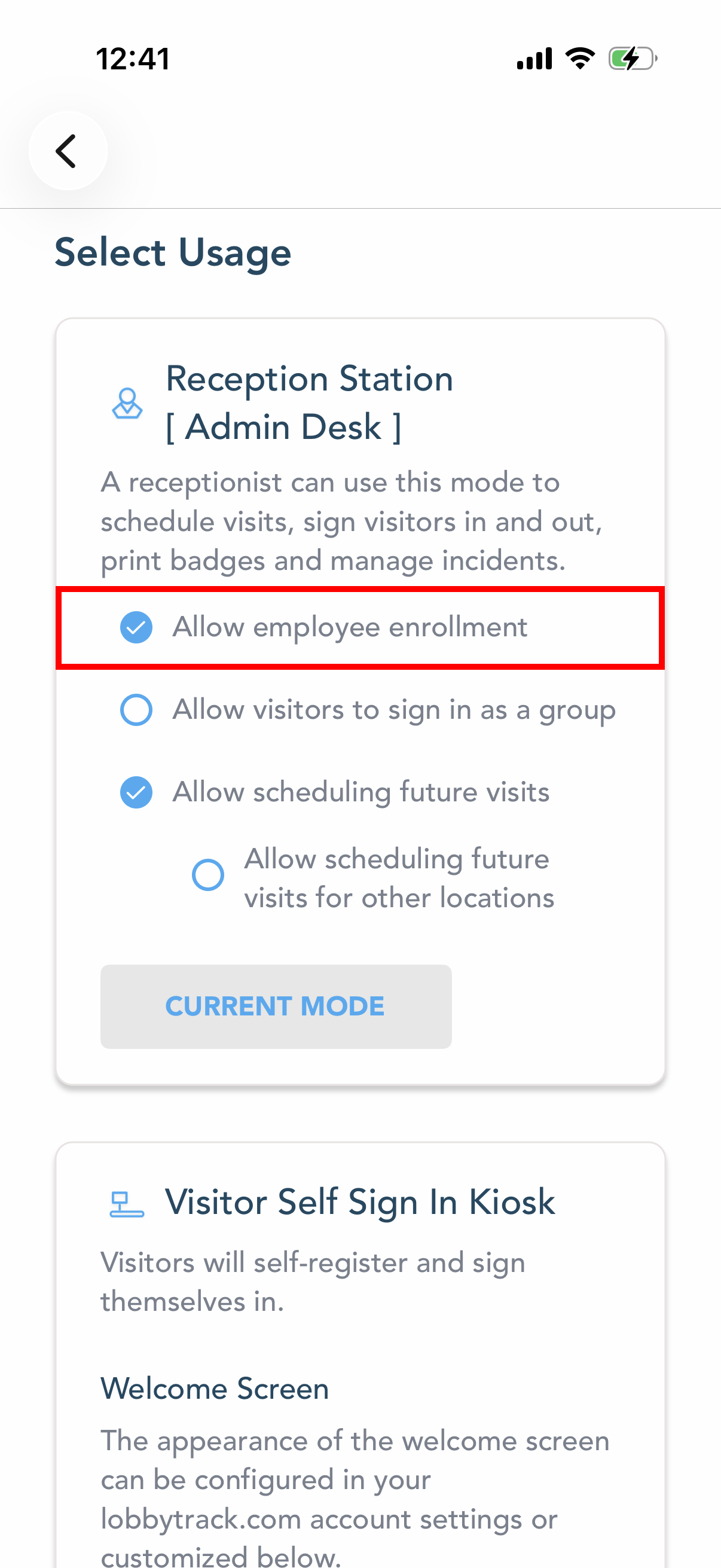
Log in to the Lobbytrack Lobby app, go to settings, and change the "Usage mode" to "Reception station".
-
Enable "Allow employee enrollment" when selecting the usage mode.
-
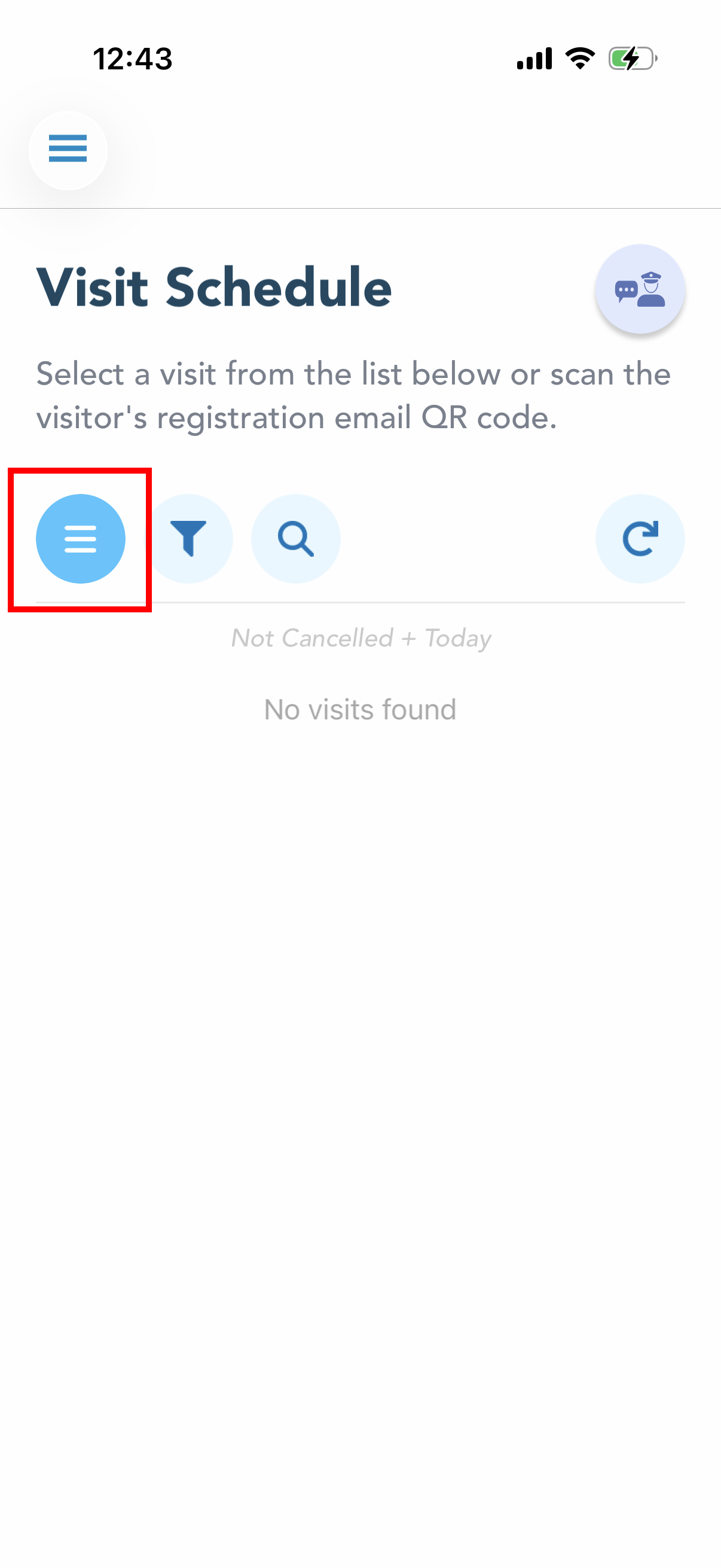
Go back to the main screen and click on the menu icon on the left side.
-
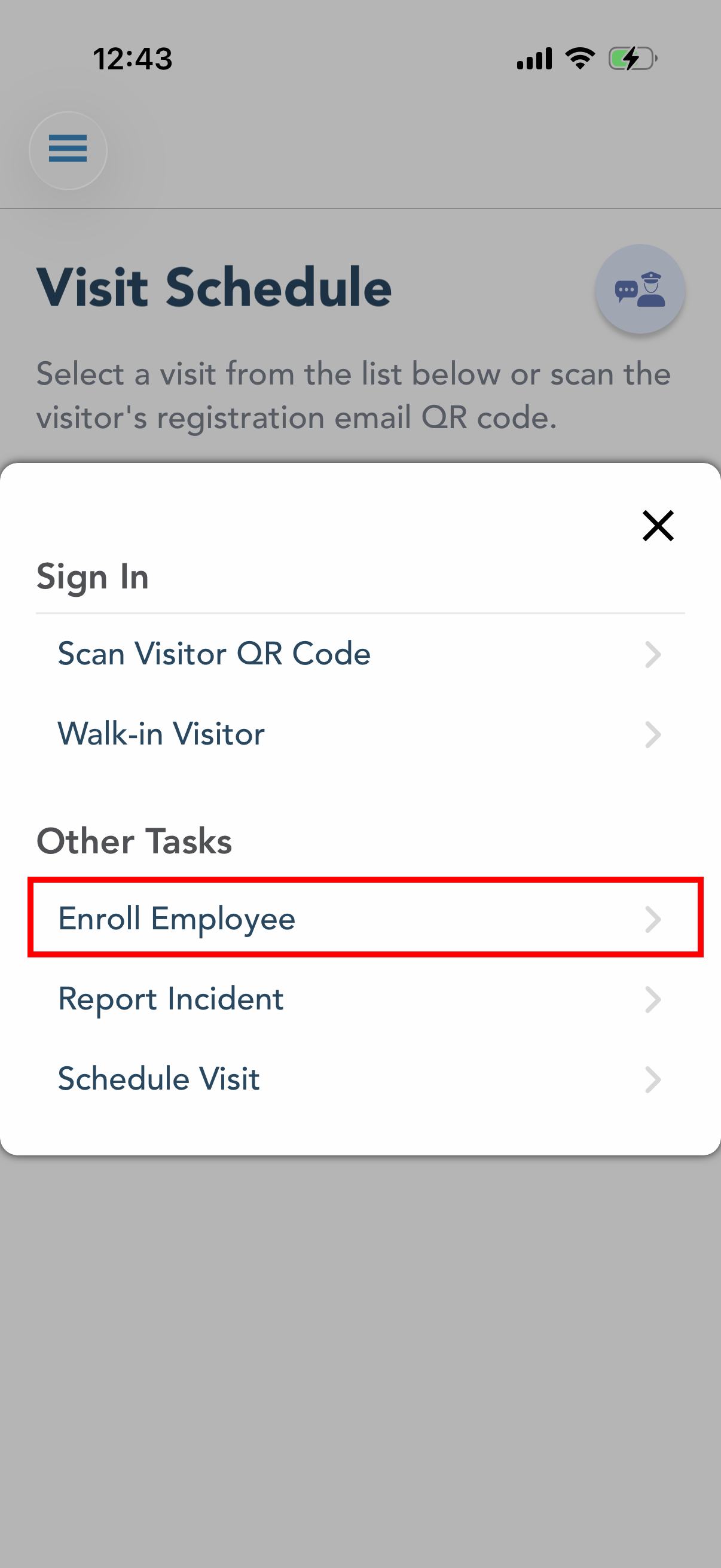
Select "Enroll Employee".
-
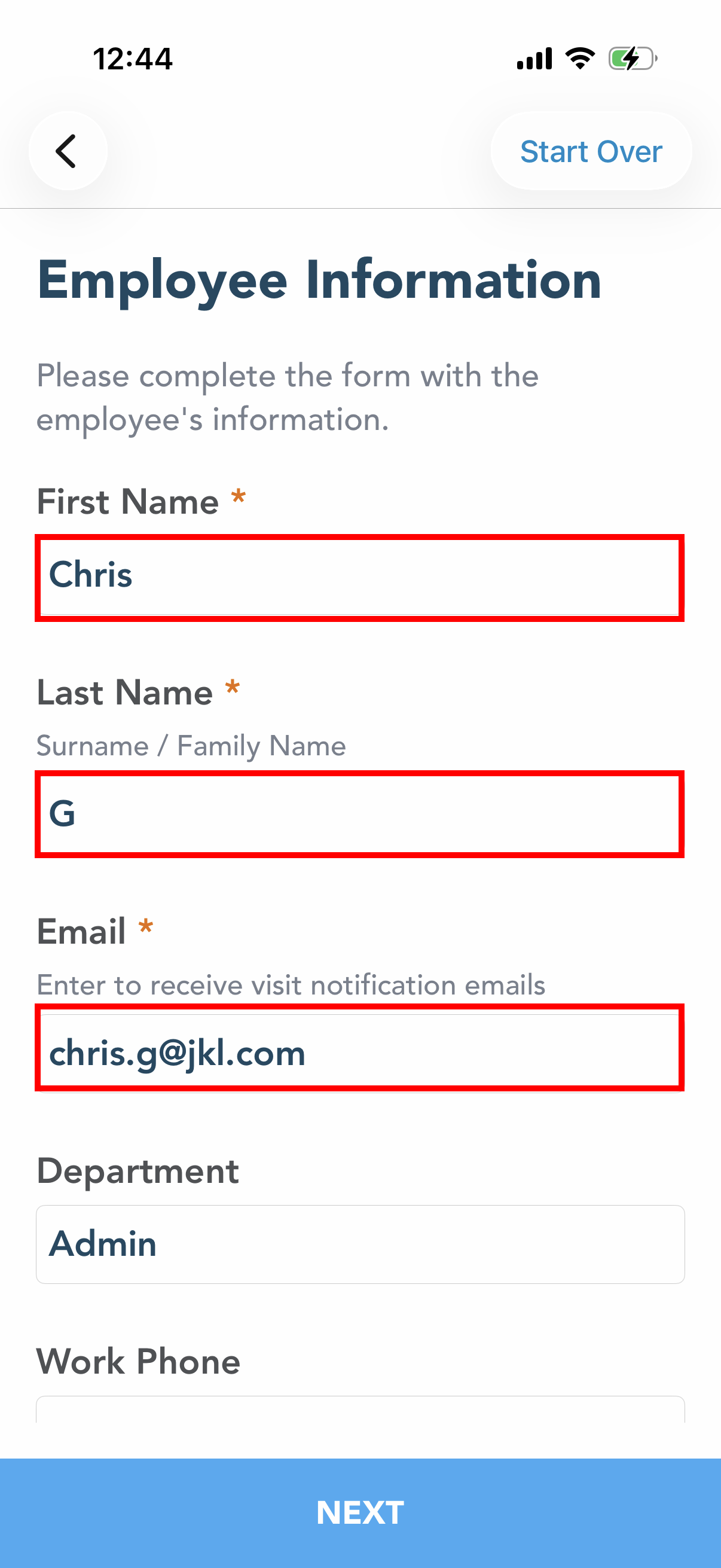
Fill out the employee form with the employee details and click "Next".
-
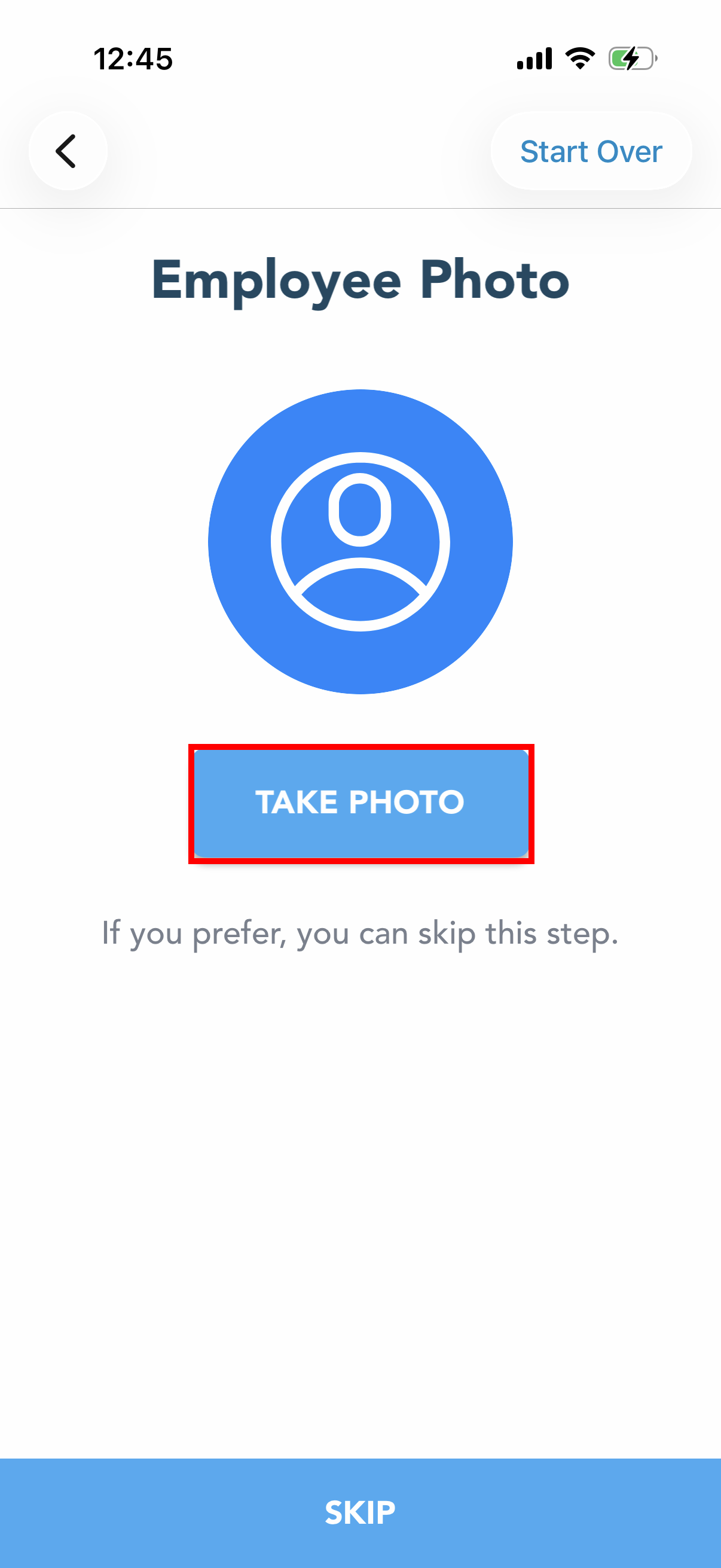
Take the employee's photo, or click "Skip". You can also make this step mandatory from the Lobbytrack settings (web portal).
-
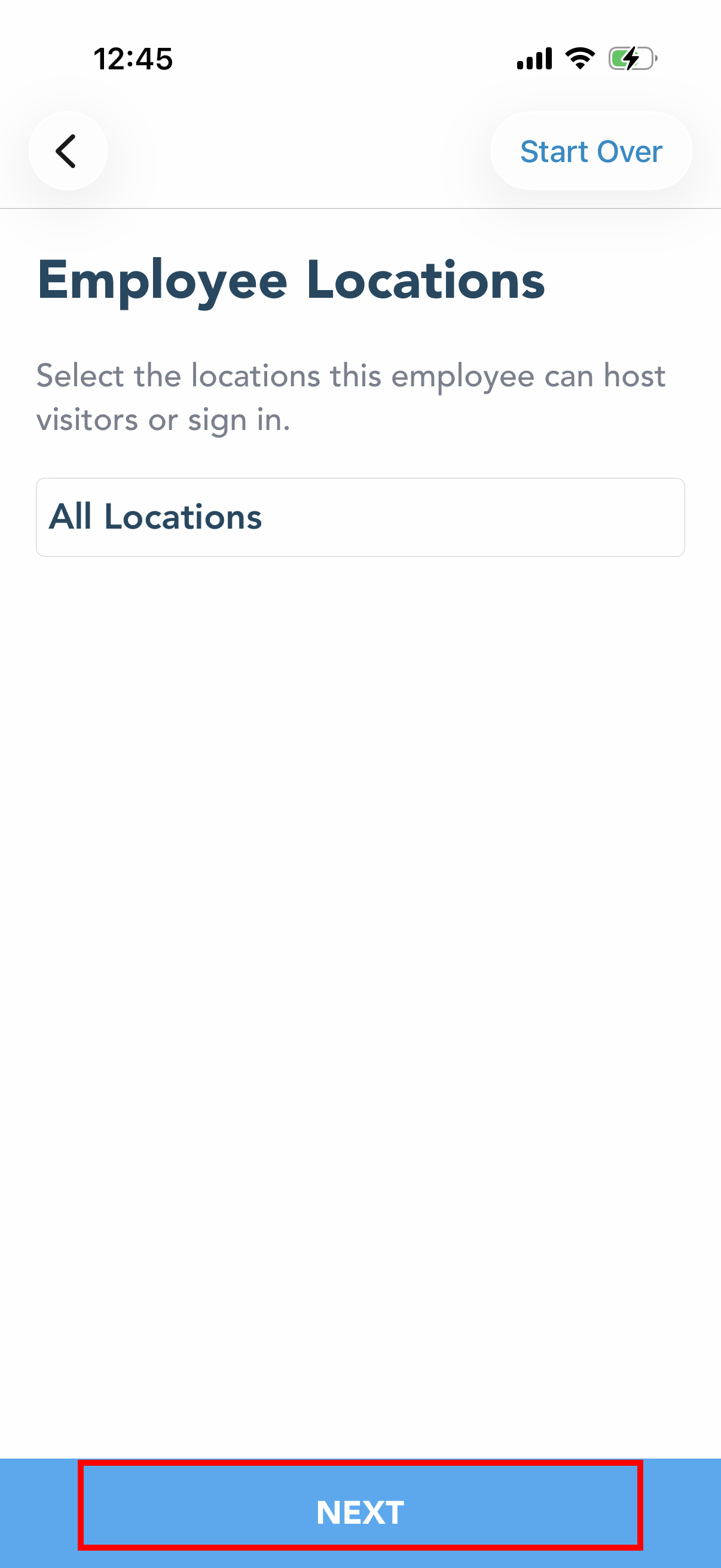
Assign a location and then click on "Next".
-
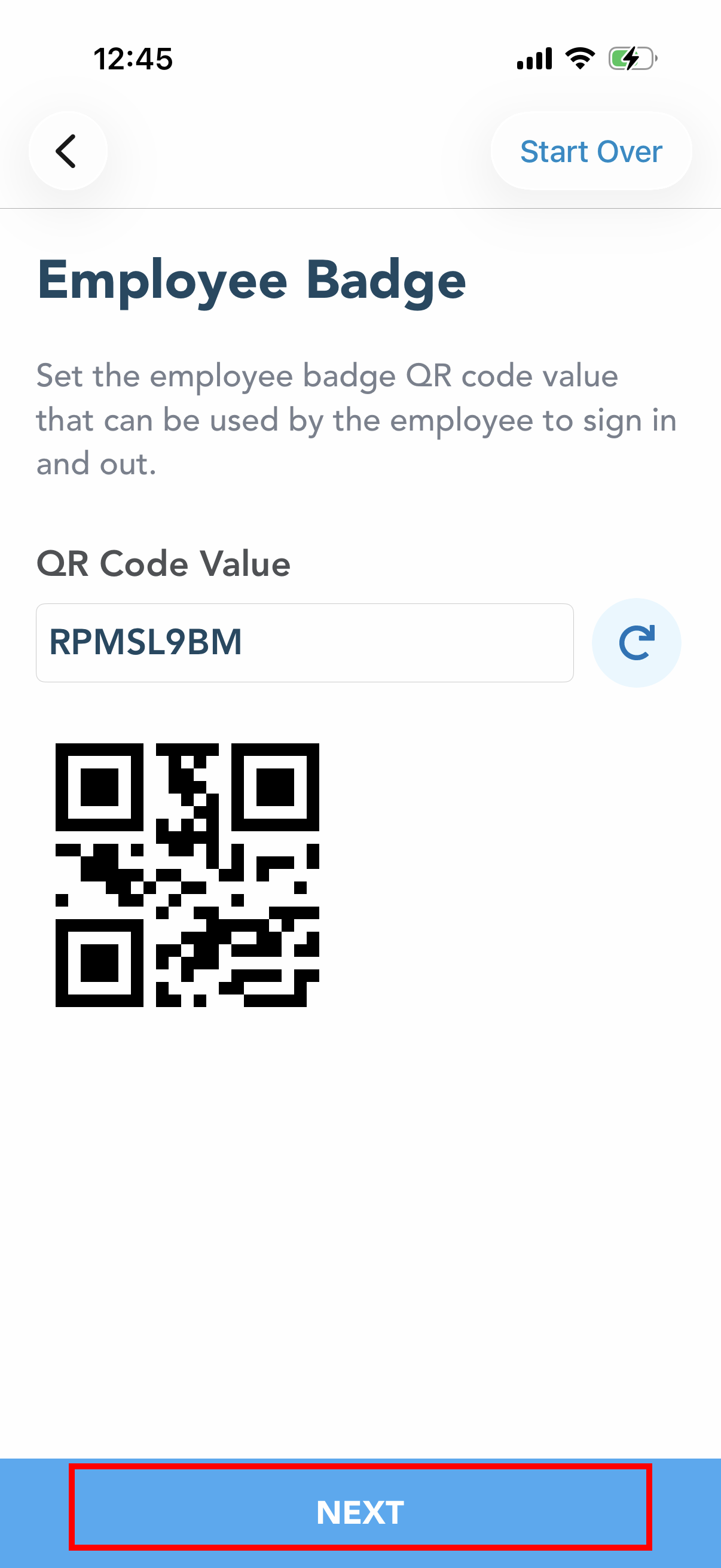
Review the system-generated QR code. The QR code can be customized as well.
-
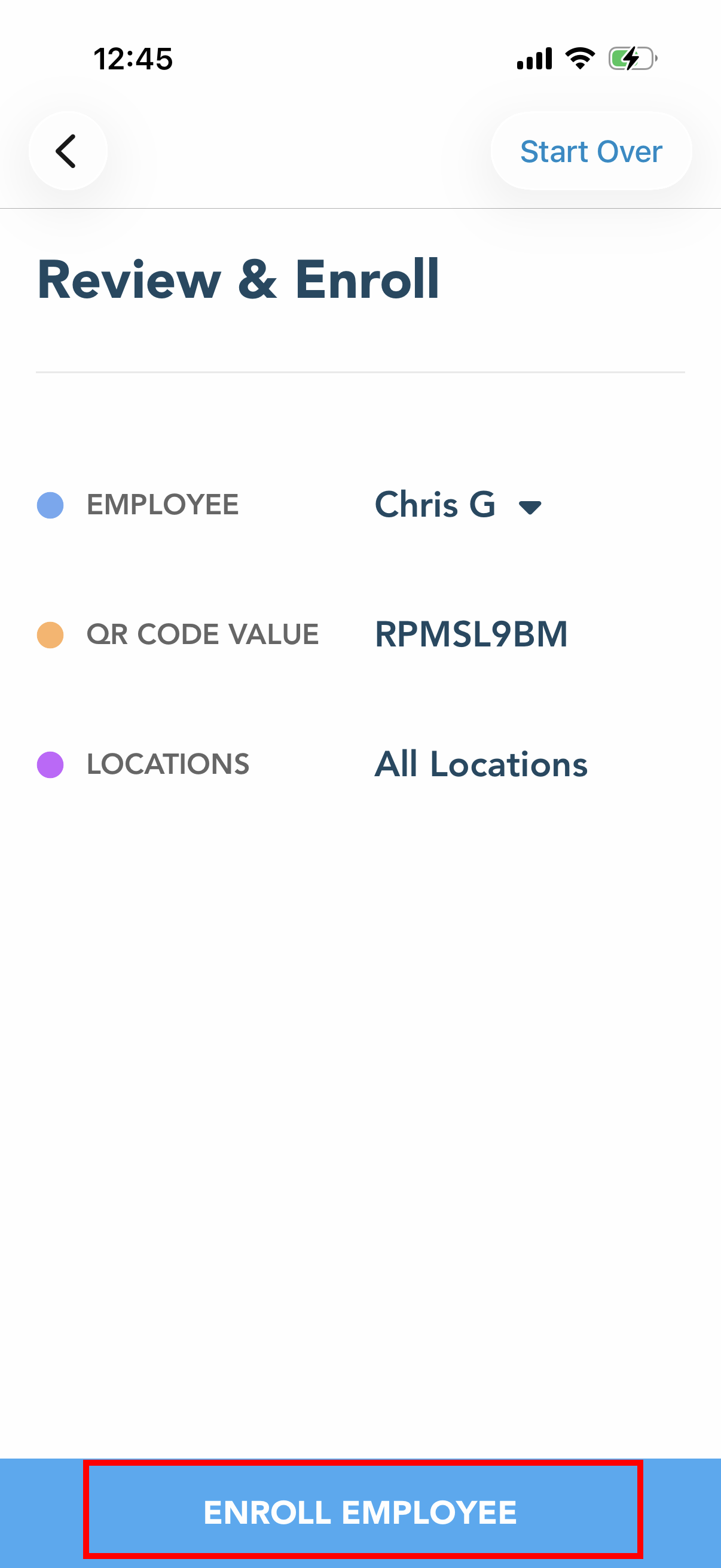
Review and enroll the employee.
-
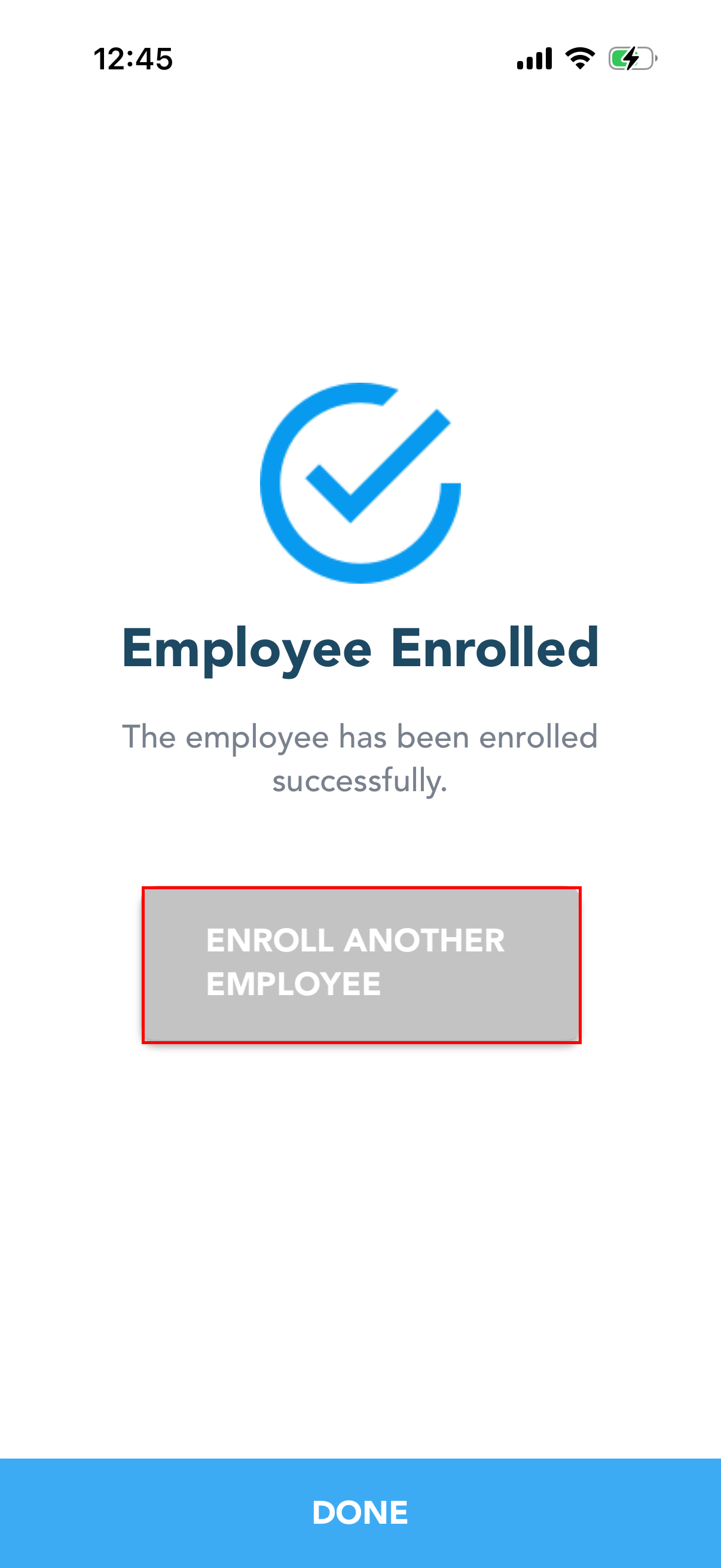
If you want to enroll another employee, click on "Enroll another Employee".
-
Once the employee is enrolled, you can check the employee details under Employee records on the web portal.